To set a kinetic law to a Reaction
- Open the KineticLaw dialog by one of the following two procedures:
- Click on the target Reaction on canvas with right-mouse button, then select Edit KineticLaw... menu.
- Or use the Reaction dialog as below,
- Open the Reaction dialog by one of the following procedures:
- In the List Area, click on the Reactions tab, then select a Reaction and click Edit button.
- In the Draw Area, right-click on a Reaction, then select Edit Reaction... menu.
- The Reaction dialog will appear.
- clicking Create or Edit button in KineticLaw field.
- Open the Reaction dialog by one of the following procedures:
- The KineticLaw dialog will appear.

- In the math textbox, set the Kinetic Law.
- To enter a Species ID in the math textbox, you can click the target Species on canvas, and press copy button below the math textbox. The ID will be automatically put in the textbox.
- Or, in Species tab at the bottom of KineticLaw dialog, select a Species and click copy button.
In the math textbox, Species IDs, not Species Names, should be specified to make a formula.
When you select the Math checkbox, the formula will be in the View mode, and fractions will be visually formatted.
When you select the Name checkbox, the formula will be in the View mode, and Species names instead of id's will be displayed in the formula.
The formula is NOT editable in the View mode.
To set a local parameter
- Select Parameters tab at the bottom of the KineticLaw dialog.
- Click New button.
- In the Parameter dialog, specify id, name, value and units for the new parameter.
To set a global parameter
- Select Parameters tab in the List area.
- Click New button.
- In the Parameter dialog, specify id, name, value and units for the new parameter.
CellDesigner supports subset of MathML representation of functions,which is defined in SBML Level 2 specification. You can see the list of supported functions in Section 3.6.1 of SBML Level2 spec which is available from the following URL:
http://sbml.org/Special/specifications/sbml-level-2/version-1/sbml-level-2-v1.pdf
To view all the Kinetic Laws set to the reactions in the model
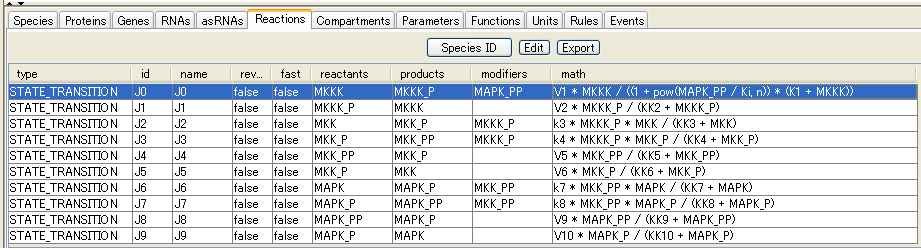
- You can check all the reactions and kinetic laws set to the reactions in the list view.